
How to Enable "Approved Content Only" on YouTube Kids
For parents who want complete control over what their children watch, YouTube Kids offers a setting called "Approved Content Only". This ensures your child can only access videos and channels you personally select.
Step 1: Open the YouTube Kids App
Launch the app on your child's device. This feature is only available inside the YouTube Kids app not the regular YouTube platform.
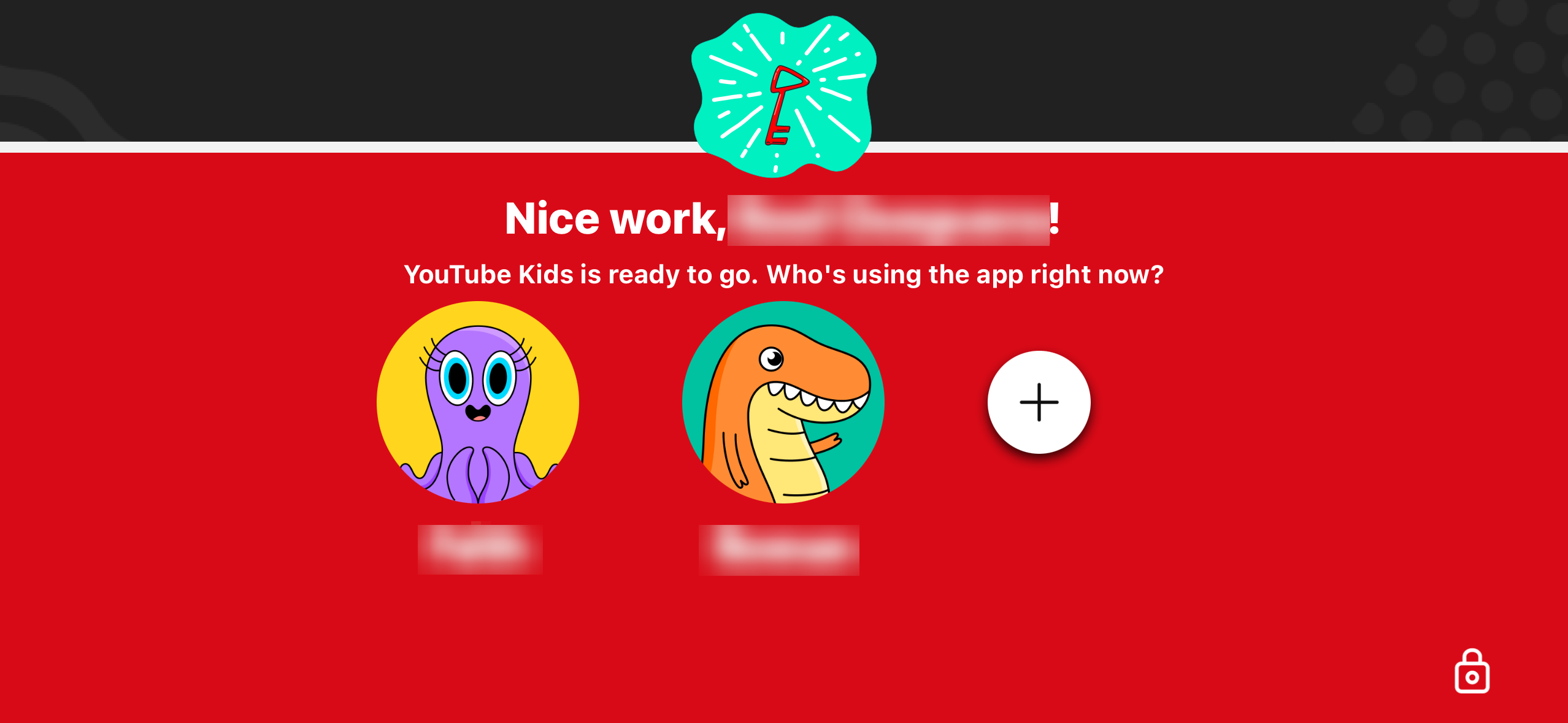
Step 2: Access the Lock (Parent Settings)
Tap the lock icon in the bottom corner of the screen. Solve the math problem or enter your custom passcode.
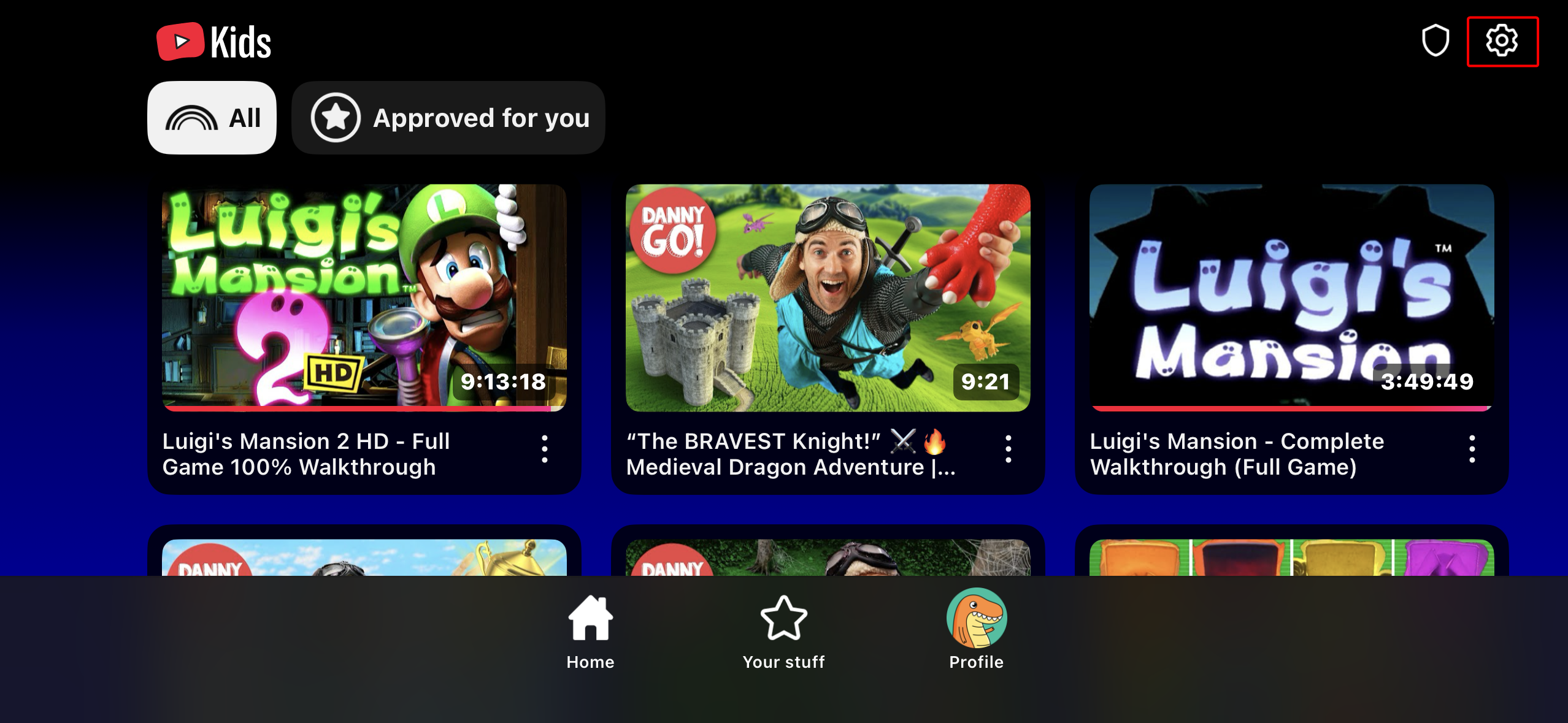
Step 3: Select Your Child's Profile
If you have multiple profiles, choose the one you want to adjust.
Step 4: Go to Content Settings
Tap "Settings", then find the section labeled "Content Settings".
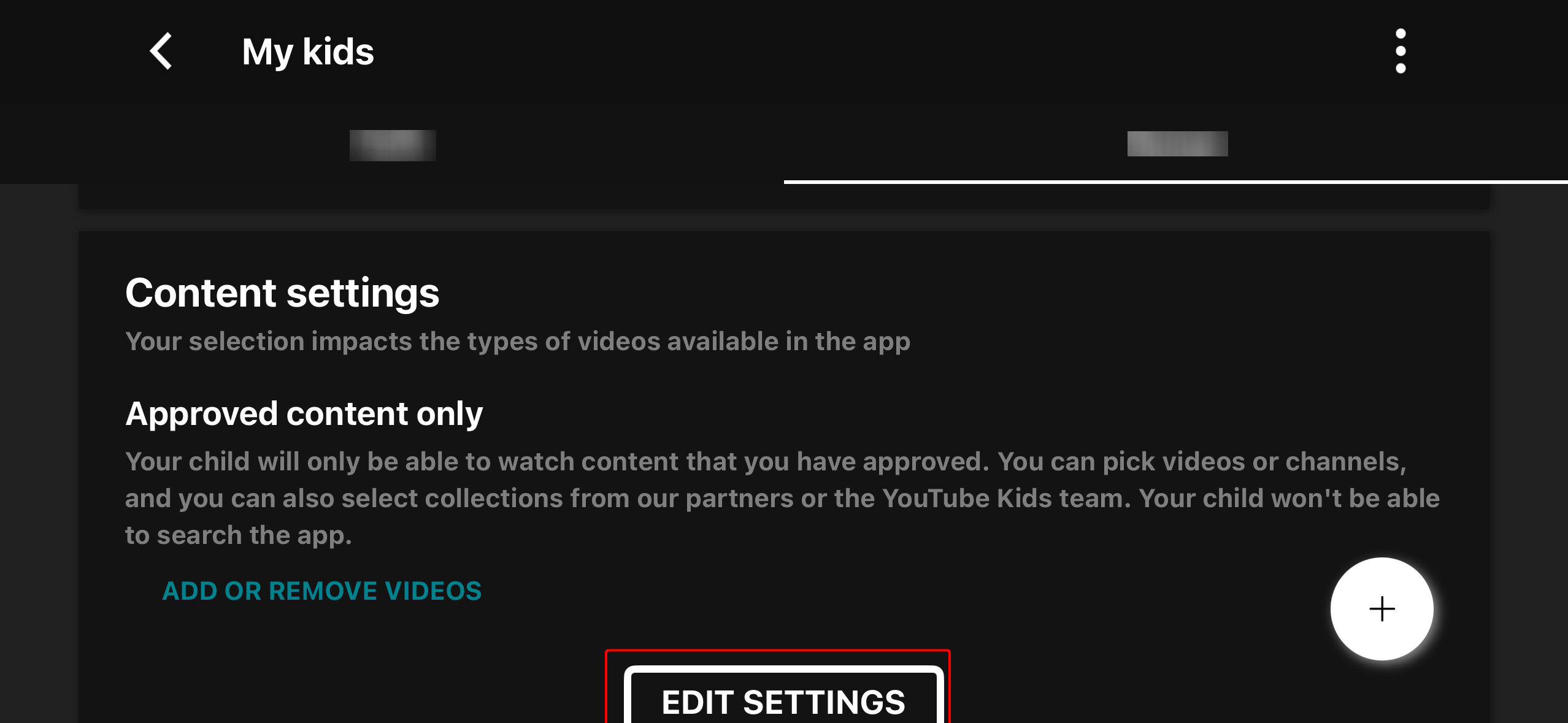
Step 5: Choose "Approved Content Only"
Select "Only show approved content". This disables search and restricts access entirely to your approved selections.
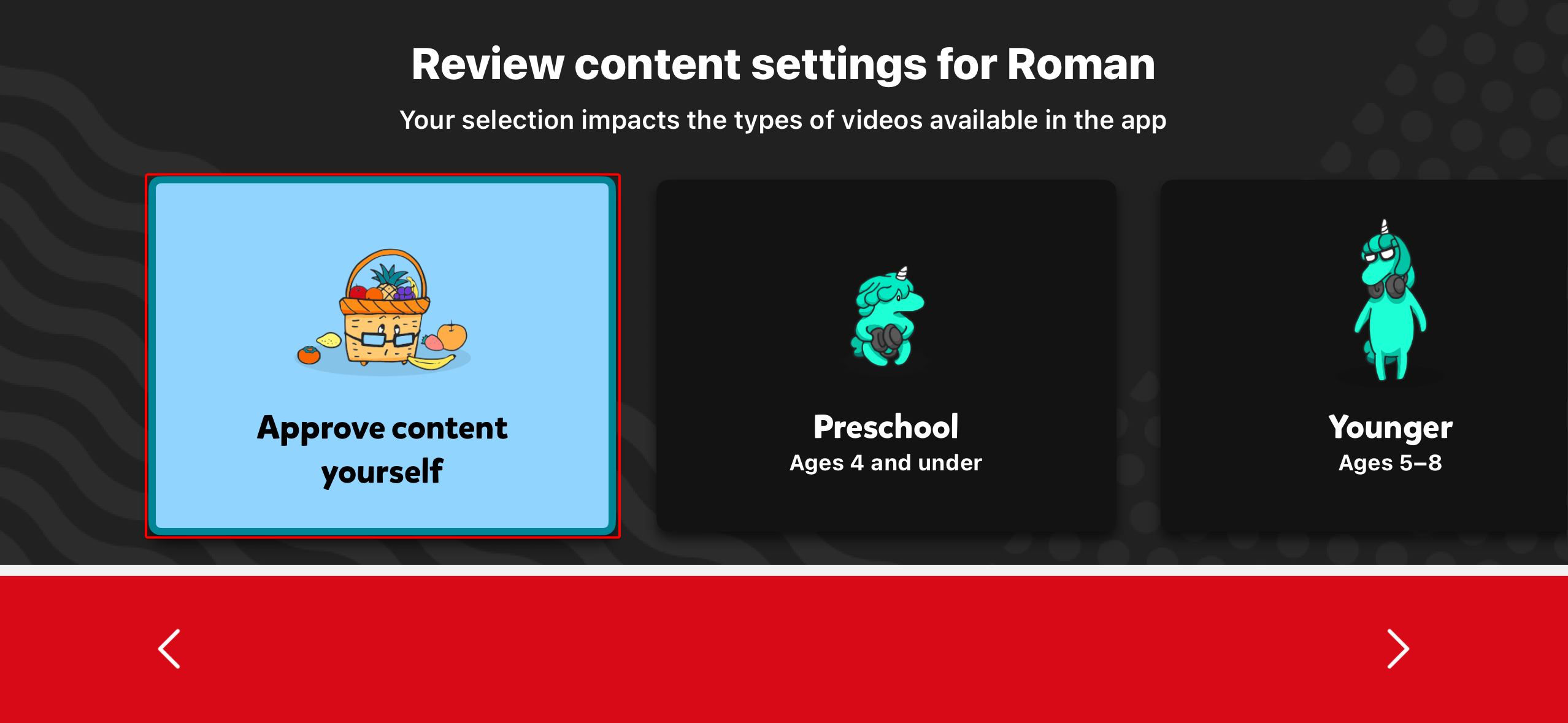
Step 6: Approve Videos or Channels
You will now manually choose which videos, channels, or collections are available. Take your time this step determines your child's entire viewing experience.
Important Notes
- Search will be turned off completely.
- Your child cannot browse beyond what you approve.
- You can update approved content anytime.
This method provides the highest level of control and is recommended for younger children or families who prefer a tightly managed digital environment.